Make.com Is Now Available in KIMP360
KIMP360 is now on Make.com. Connect your design request boards to 2,000+ apps and let the busywork run itself: trigger scenarios the instant a card is created, reviewed, or completed, and send new requests into KIMP360 from any app Make connects to. Zero code required.
Why Connect KIMP360 to Make?
- Stop babysitting the dashboard. Your team finds out the moment a card moves, not whenever someone happens to refresh.
- Clients feel the speed. Tell them the instant a design is ready for review, automatically, every time.
- No more copy-paste between tools. Requests flow in from forms, CRMs, and spreadsheets straight into KIMP360.
- Built for non-engineers. If you can drag a box on a canvas, you can build the automation.
What Is Make?
Make (formerly Integromat) is a visual automation platform: you build “scenarios” by dragging modules onto a canvas and connecting them, without writing a single line of code. A scenario starts with a trigger, the event that kicks it off, and runs through one or more actions that do the work.
With the KIMP360 module for Make, you can:
- Start a scenario the instant a card is created, moves to a new status, or is updated in KIMP360.
- Create, search, archive, and tag KIMP360 cards from inside any scenario.
- Connect KIMP360 to the other apps your team already uses: Slack, Google Sheets, Gmail, Notion, Trello, and thousands more.
Authenticate Your Scenario with KIMP360
Every KIMP360 module in Make runs on a personal API key tied to one board. Here’s how to get yours and build your first connection.
How to Get Your API Key
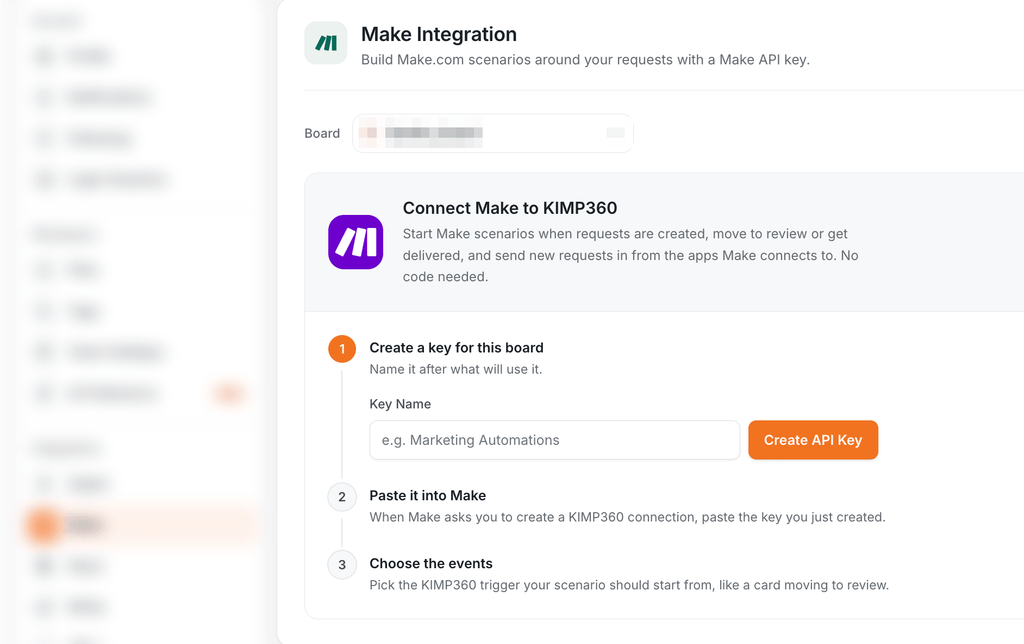
- Log in to your KIMP360 dashboard and open Settings, then the Make tab.
- Under Board, confirm you’re on the board you want this key to act on. Each board has its own Make key.
- Name the key after what will use it (for example, “Marketing Automations”) and click Create API Key.
- Copy the key immediately and store it somewhere secure, like a password manager. Treat it like a password: it gives full access to that board’s KIMP360 data.
- In Make, add any KIMP360 module to a scenario and click Add next to the connection field. Paste the key when prompted. Make validates it immediately and labels the connection with the key’s name.
Keys are per-board. If a scenario needs to touch more than one board, create a separate key and connection for each.
Available Triggers
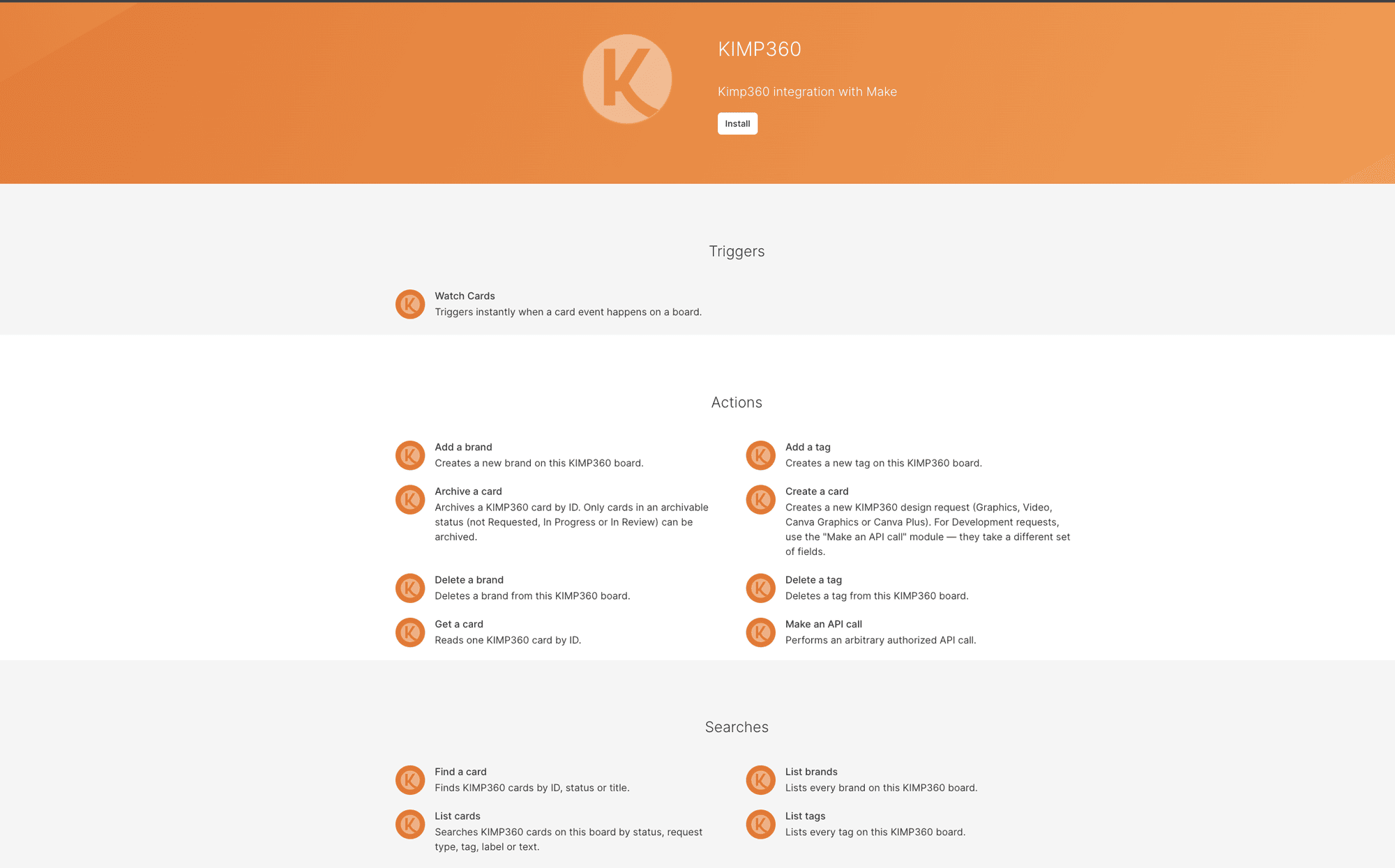
A trigger is the event that starts your scenario. KIMP360 offers one trigger module, Watch Cards, which fires instantly the moment a card event happens on your board, no polling delay.
Each Watch Cards module watches exactly one event. Add a second Watch Cards module, with its own webhook, if your scenario needs to react to more than one.
Watch Cards: Choose One Event
- Card created
- Card updated
- Card details updated
- Card archived
- Card unarchived
- Card moved to Draft
- Card moved to Request
- Card moved to In Progress
- Card moved to In Review
- Card moved to Completed
- Card due date changed
- Card deleted
Every bundle the trigger emits carries:
| Field | What it holds |
|---|---|
event | The event name that fired this run |
cardId | The card’s identifier |
cardTitle | The card’s title |
changed_data | Present when a field actually changed, for example a status or due date move: the field, its original value, and its new value |
Example: Watch for Card moved to In Review, then post a message in Slack telling the client their design is ready to look at.
Available Actions
An action does work inside KIMP360: creating, changing, or removing a record. A scenario can chain one or more KIMP360 actions, in any order, after its trigger.
Create a Card
The main action: creates a new request on the board from a Make scenario, for example when a form is submitted, a deal is won, or a row is added to a spreadsheet.
- Title, Product (Graphics, Video, Canva Graphics, or Canva Plus), and Request type, required.
- Description, required: the brief your team needs to start work.
- Dimension, required: typed as free text, for example
1080x1080or16:9. - Software and File formats, required: dropdowns populated from the request type you chose, with a map mode toggle if you need a value not in the list.
- Brand and Tag IDs, optional.
- Save as draft, Text copy, file URLs, and notes fields, optional.
Development cards need a different field set and aren’t supported by this action yet. Use Make an API call for those.
Other Actions
| Module | What it does |
|---|---|
| Archive a card | Archives a card by ID. Only cards in an archivable status can be archived. |
| Get a card | Reads one card by ID, returning its title and status. |
| Add a brand | Creates a new brand on the board. |
| Delete a brand | Removes a brand by ID. Destructive and cannot be undone. |
| Add a tag | Creates a new tag, with an optional background color. |
| Delete a tag | Removes a tag by ID. Destructive and cannot be undone. |
| Make an API call | A universal module for any KIMP360 endpoint not covered by a dedicated module above. |
Example: A scenario triggered by a new row in a spreadsheet can add a brand in KIMP360, then create a card for that brand, in two action steps.
Available Searches
A search looks up existing records in KIMP360 rather than creating or changing one. Use a search to find a record to act on, or to loop over a list of records with Make’s Iterator module.
| Module | What it returns |
|---|---|
| List cards | Cards on the board, with optional filters for text, status, request type, tag, and archivable state |
| Find a card | A single card matched by card ID, status, or title |
| List brands | Every brand on the board |
| List tags | Every tag on the board |
| List team | The board’s team members |
Every search has a Limit field capping how many bundles it returns in one execution cycle.
Example: Use Find a card to look up a card by title, then feed its ID straight into Archive a card or Add a tag.
Security Best Practices
Proper management of your API keys is critical to the security of your integration and data.
- Keep keys confidential. Treat your API key like a password. Never embed it in client-side code, commit it to version control, or share it with other users.
- One key per use case. Name each key after what uses it, and create a new one for each scenario or board instead of reusing a single key everywhere.
- Rotate keys regularly. Periodically regenerate your keys from Settings > Make, especially if you suspect one may have been compromised.
Example Automations You Can Build
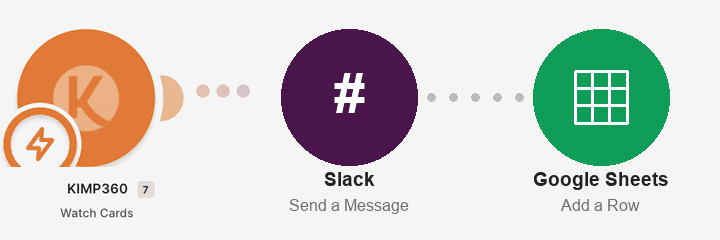
- New request, team notified. Watch Cards (Card moved to Request) → Slack: post “New request: {{cardTitle}}” to your design team’s channel, so no one has to keep refreshing the dashboard.
- Client told the moment it’s ready. Watch Cards (Card moved to In Review) → Gmail or Slack: message the client directly, instead of waiting for them to log in and check.
- Turnaround reporting, outside KIMP360. Watch Cards (Card moved to Completed) → Google Sheets: add a row with the card ID, title, and timestamp, building a turnaround-time log automatically.
- New request from a spreadsheet or form. Google Forms or a spreadsheet row → Create a card: a client-facing intake form turns straight into a KIMP360 request, no manual re-entry.
Start Automating Today!
Head to your KIMP360 dashboard, open Settings > Make, and create your first API key. Then build your first scenario in Make and connect it to the apps your team already runs on.
No code. No manual re-entry. No more waiting. The moment something happens in KIMP360, your workflow moves itself.
Learn more about the feature and how to get started in our documentation: [Read the docs]