Introducing KIMP360 MCP Connectors: Bring Your Creative Workflow Into AI
Ask Claude or ChatGPT what’s happening on your board, in plain English, right where you already work. No dashboard tab to open, no new app to learn: connect once, then just talk to the AI assistant you already use.
What You Can Ask
- “Create a request for an Instagram carousel about our spring sale.”
- “Find last year’s Black Friday banners and the feedback we gave.”
- “Move the homepage banner request to In Review.”
- “Who’s still waiting on an invite to this board?”
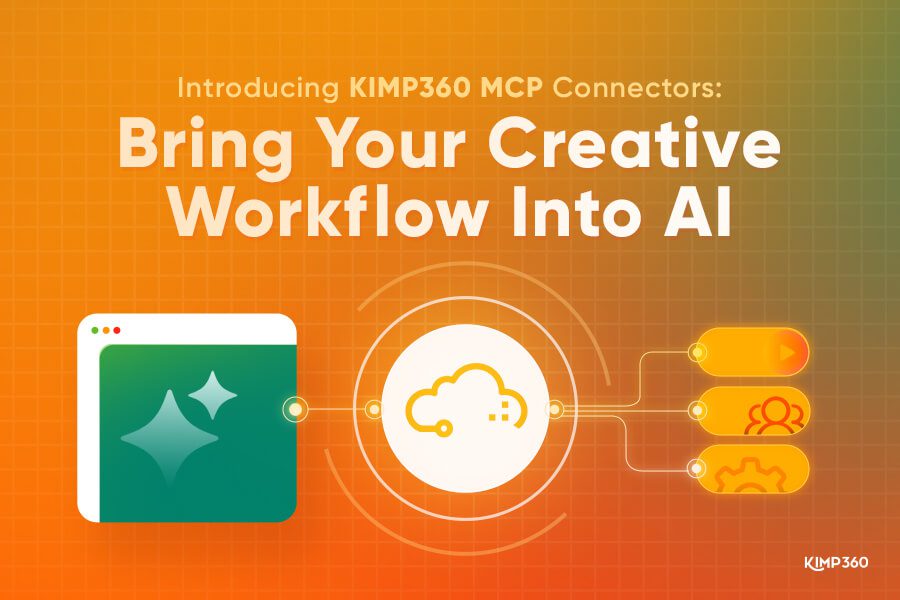
It can look things up, draft and move requests, post comments, check your plan, and even kick off a design with KIMP360’s AI Designer, all from inside the chat.
Connect in Under a Minute
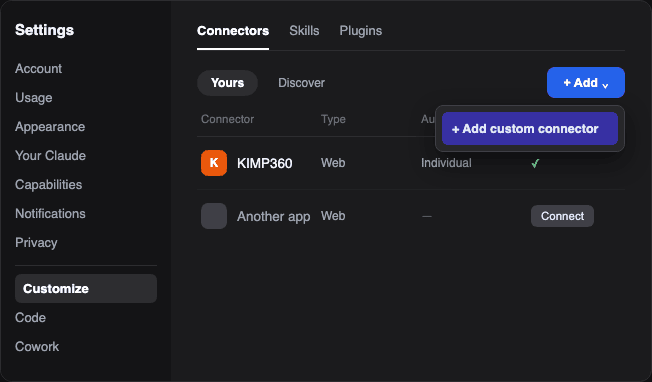
- Open Settings > AI Apps and click Connect An App.
- Pick your AI app (Claude, ChatGPT, Cursor, VS Code, Claude Code, and more).
- Sign in and choose which boards it can see, and whether it can only look or also act.
You’re Always in Control
Access is set per board, not account-wide. A board can stay completely hidden, open for lookups only, or open for both reading and writing, your call, changeable any time.
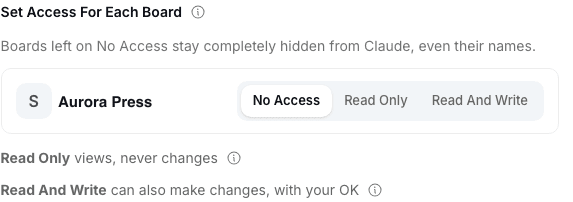
Every change your AI app makes (a new request, a moved card, a posted comment) is confirmed with you first, never a silent guess. And anything it reads from KIMP360, briefs, comments, brand notes, is always just content, never a command it follows on its own.
Try It Now
Head to Settings > AI Apps and connect your first AI assistant. The next time something needs your attention, just ask.
Curious to explore more? We’ve put together a guide to help you get started: [Explore the guide]