KIMP360 Integrations Are Here: Meet Wrike
KIMP360 now connects directly to Wrike. Mirror a board’s requests into Wrike the moment they’re created, so your team can track design work alongside everything else they manage, without anyone copy-pasting a single task by hand.
How to Connect?
No API keys, no code, no separate app to install: connecting a board to Wrike is a two-click OAuth flow.
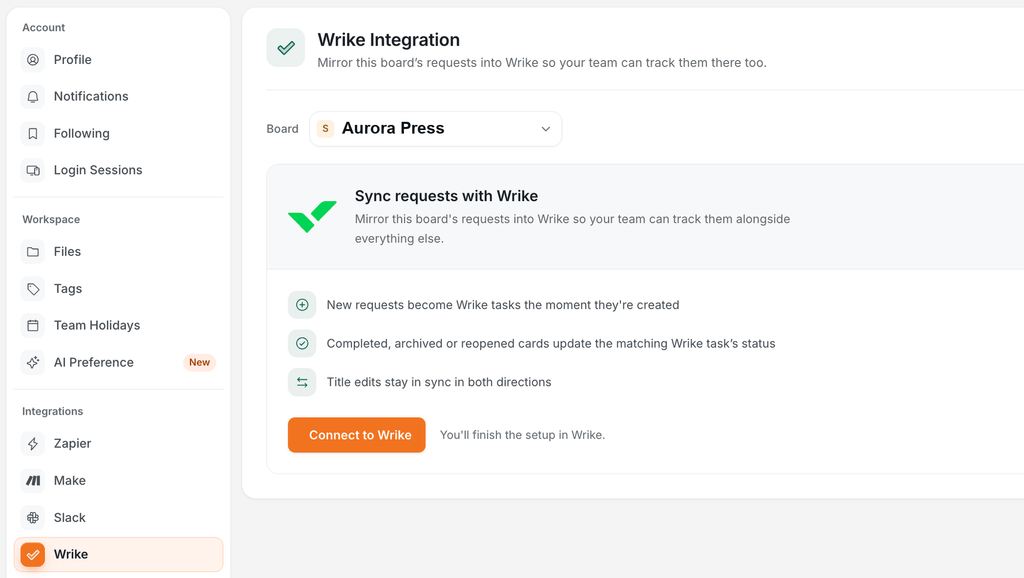
Sign in to KIMP360, open Settings, then the Wrike tab under Integrations.
- Pick the board you want to connect at the top of the page.
- Click Connect to Wrike.
- Sign in to Wrike (if you aren’t already) and approve KIMP360’s request for access.
- You’re redirected back, now showing your connected Wrike account and the folder new tasks land in.
What Syncs Outbound (KIMP360 → Wrike)
Once a board is connected, every request mirrors into Wrike automatically, with no scenario to build and no module to configure.
- New requests become Wrike tasks the moment they’re created. Title, description, and every detail you filled in (request type, product, dimensions, text copy, file formats, software, brand, tags, attached files and notes) land in the task’s description, cleanly labeled.
- Archiving or reopening a card moves the matching Wrike task to Cancelled or back to Active.
- A status change moves the task too (see Status Mapping below) when that status has been mapped.
- A title edit in KIMP360 updates the Wrike task’s title.
- A details edit (description, dimensions, text copy, file formats, software, brand, request type, and more) rebuilds the task’s full description from the card’s current values.
Example: A client submits a new request. Thirty seconds later, your ops lead sees it as a task in the same Wrike project they already track delivery dates in, fully briefed, no one having retyped a word.
Status Mapping: Your Statuses, Your Rules
Every team runs Wrike a little differently, so KIMP360 doesn’t guess. From Settings > Wrike Integration > Status Mapping, an admin picks exactly which Wrike custom status each KIMP360 status should drive:
| KIMP360 status | Maps to |
|---|---|
| Drafted | Not mapped by default |
| Requested | e.g. New (Active) |
| In Progress | e.g. In Progress (Active) |
| In Review | e.g. On Hold (Deferred) |
| Completed | e.g. Completed (Completed) |
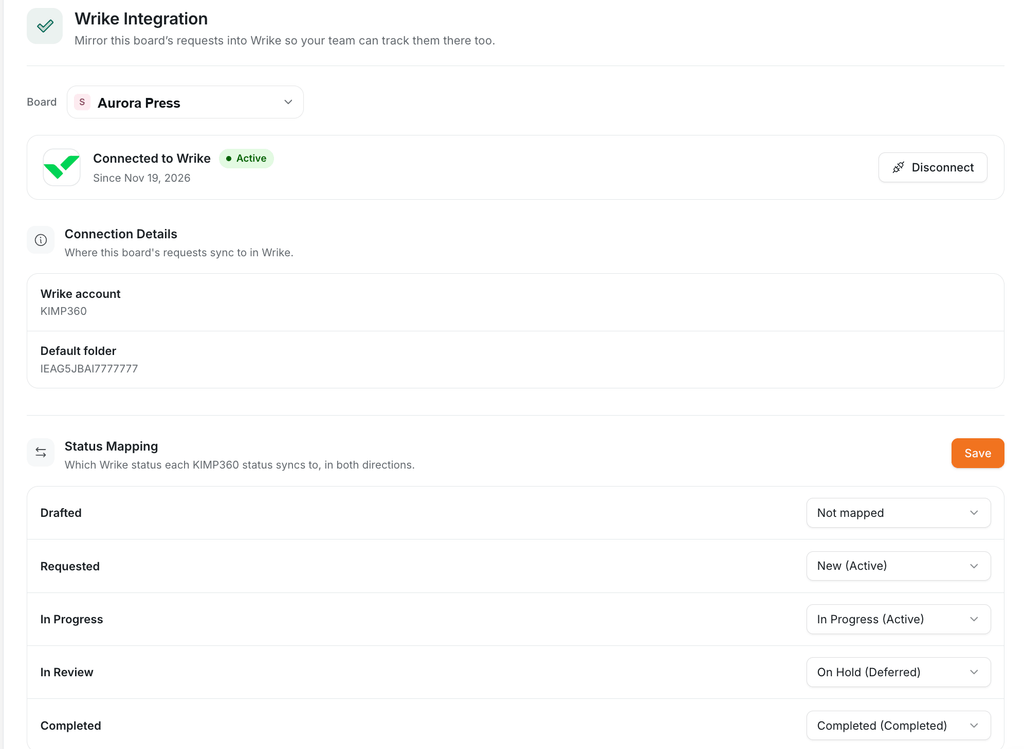
Once mapped, a status change in KIMP360 moves the Wrike task to the exact matching status, not just a generic approximation. Leave a status unmapped and KIMP360 falls back to its default behavior: only a move to Completed updates the task, everything else is left alone until you map it.
What Syncs Inbound (Wrike → KIMP360)
The sync runs both ways, so your Wrike-side team doesn’t have to remember to go back to KIMP360 to update anything:
- Rename the task in Wrike, and the card’s title updates in KIMP360 to match.
- Move the task to a mapped status in Wrike, and the card moves to the matching KIMP360 status, the same mapping you set up for outbound sync, working in reverse.
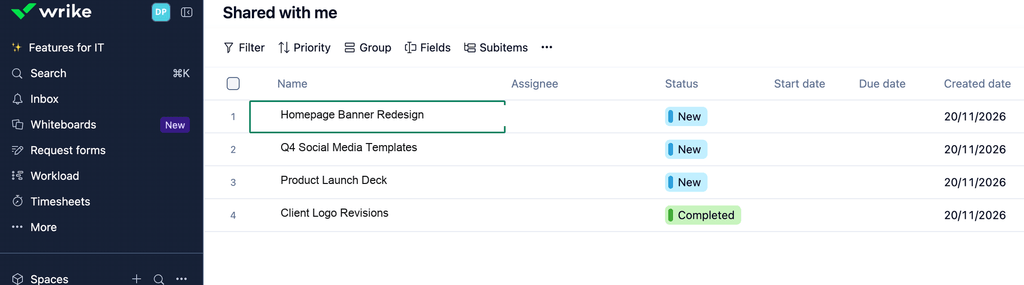
Either side can confirm its own write without a loop: KIMP360 only reacts to a title or status that’s genuinely different from what it last sent, so nothing ping-pongs back and forth.
Good to Know
- Due dates, assignees, and comments don’t sync yet. Everything else about a request does.
- One board, one Wrike connection. Each board picks its own Wrike account and folder independently.
- A sync hiccup on one board never affects another. Each board’s connection is isolated end to end.
Start Syncing Today
Head to your KIMP360 dashboard, open Settings > Wrike, and click Connect to Wrike. Two minutes later, your Wrike-side team is watching the same work update in real time, without ever touching KIMP360.